
Table des matières
ImageMagick scripts for ARRM
Since version ARRM 2.0.3.9 beta 2, it's possible to use powershell scripts to generate artworks. (thank you smashingblargharghar)
You can create your own scripts, drawing inspiration from those already available. It uses ImageMagick, which is already installed with ARRM. But you can change the path in the scripts if you want to point to your own imageMagick executable.
Variables Usable in Scripts
%%MAGICK%% : Path to magick.exe (do not modify) or use your own path enclosed in double quote (eg : "C:Program
FilesImageMagick-7.1.2-Q16-HDRI")

%%SYSTEM_ROM_FOLDER%%: Example: e:shareromsfbneo
%%FILENAME%%: If the **Image as ROM** checkbox is checked in ARRM, this variable will take The **filename without extension** is used as the value; otherwise, it will use the **game name**.
%%FILENAMEWITHOUTEXTENSION%%: Filename without extension
%%FILENAMEWITHEXTENSION%%: Filename with extension
%%GAMENAME%%: Game title
%%TEMP%%: %appdata%\Nexouille Soft\arrm\temp
%%RESSOURCES%% : %appdata%\Nexouille Soft\arrm\ressources

Full path to retrieved media ARRM

%%BEZEL%%
%%BOXART%%
%%BOXBACK%%
%%CARTRIDGE%%
%%EXTRA1%%
%%FANART%%
%%IMAGE%%
%%MAGAZINE%%
%%MANUAL%%
%%MAPS%%
%%MARQUEE%%
%%MIX%%
%%ROUNDWHEEL%%
%%SCREENSHOT%%
%%THUMBNAIL%%
%%TITLESHOT%%
%%VIDEO%%
%%WHEEL%%

Below is the full path to the media folder:

Example %%FOLDER_BOXART%%: e:\share\roms\fbneo\media\boxart (depending on your configuration) ARRM)

%%FOLDER_BEZEL%%
%%FOLDER_BOXART%%
%%FOLDER_BOXBACK%%
%%FOLDER_CARTRIDGE%%
%%FOLDER_EXTRA1%%
%%FOLDER_FANART%%
%%FOLDER_IMAGE%%
%%FOLDER_MAGAZINE%%
%%FOLDER_MANUAL%%
%%FOLDER_MAPS %%
%%FOLDER_MARQUEE%%
%%FOLDER_MIX%%
%%FOLDER_ROUNDWHEEL%%
%%FOLDER_SCREENSHOT%%
%%FOLDER_THEMEBUILDER%%
%%FOLDER_THUMBNAIL%%
%%FOLDER_TITLESHOT%%
%%FOLDER_VIDEO%%
%%FOLDER_WHEEL%%

Below you will find the suffix to use for your media:
Example %%SUFFIX_BOXART%%: -boxart (depending on your configuration) ARRM)

%%SUFFIX_BEZEL%%
%%SUFFIX_BOXART%%
%%SUFFIX_BOXBACK%%
%%SUFFIX_CARTRIDGE%%
%%SUFFIX_EXTRA1%%
%%SUFFIX_FANART%%
%%SUFFIX_IMAGE%%
%%SUFFIX_MAGAZINE%%
%%SUFFIX_MANUAL%%
%%SUFFIX_MAPS%%
%%SUFFIX_MARQUEE%%
%%SUFFIX_MIX%%
%%SUFFIX_ROUNDWHEEL%%
%%SUFFIX_SCREENSHOT%%
%%SUFFIX_THUMBNAIL%%
%%SUFFIX_TITLESHOT%%
%%SUFFIX_VIDEO%%
%%SUFFIX_WHEEL%%
How to Use
To apply a script to ROMs that already have media, simply select your ROMs and click the Image Magick Scripts button in the Selected ROMs tab.
A window will open; select the desired script and click Run Script.
ARRM retrieves the template script selected, creates a temporary file named script_magick_tempo.ps1 in %appdata%\Nexouille Soft\arrm\ressources , injects the ARRM variables into it, then runs it. This file allows you to debug the script if the behavior is not as expected.
These scripts are a mix of Windows PowerShell and ImageMagick-specific commands.
They incorporate variables from ARRM, allowing for maximum customization of your scripts.
- Select Roms, then click on Image Magick Scripts button:
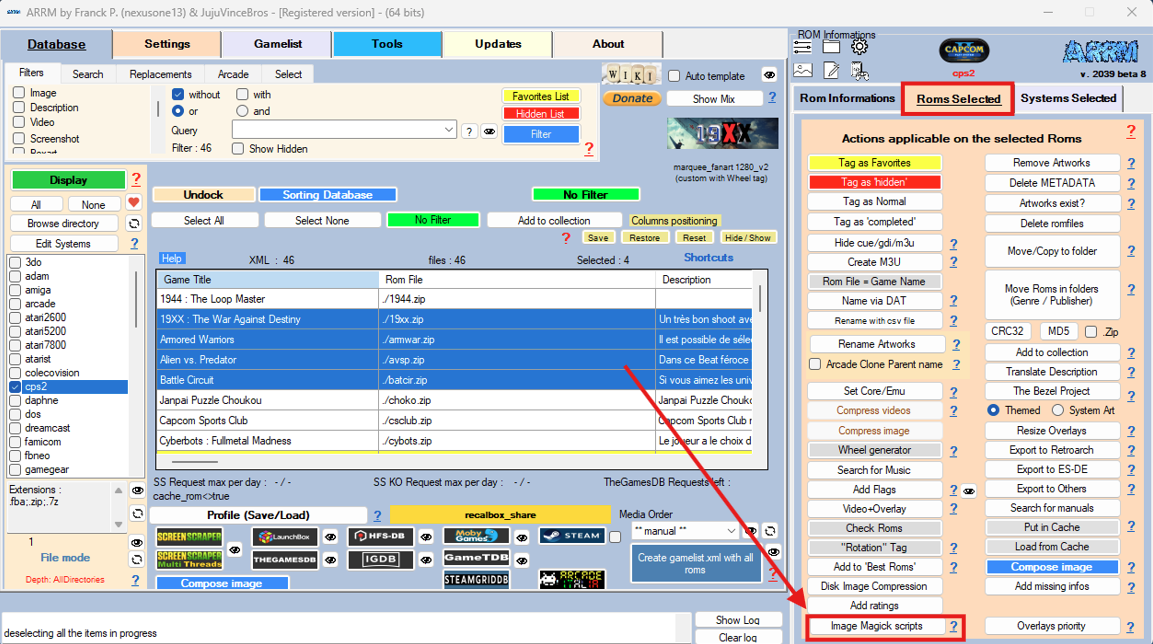
- Select the script, you want to apply.
- Click on Execute script.
- Consult the scrape log to verify that everything went smoothly and to find the location of the generated media. This location can be found by examining the script.
How to Debug script
To debug the script and find the source of the error, you must run the script so that it generates the file script_magick_tempo.ps1 located in the directory %appdata%\Nexouille Soft\arrm\ressources.
This file will be populated with the values sent by ARRM.
To test this script, open your PowerShell console and navigate to the folder %appdata%\Nexouille Soft\arrm\ressources.
cd "$env:APPDATA\Nexouille Soft\arrm\ressources"
then run the script like this:
.\script_magick_tempo.ps1"
then press Enter.
The script will execute and display errors if it encounters a problem. Check and correct any errors in this temporary script. Once corrected, transfer your changes to the original script.
Script Download and Updates
Scripts can be updated or installed via the ARRM update module.
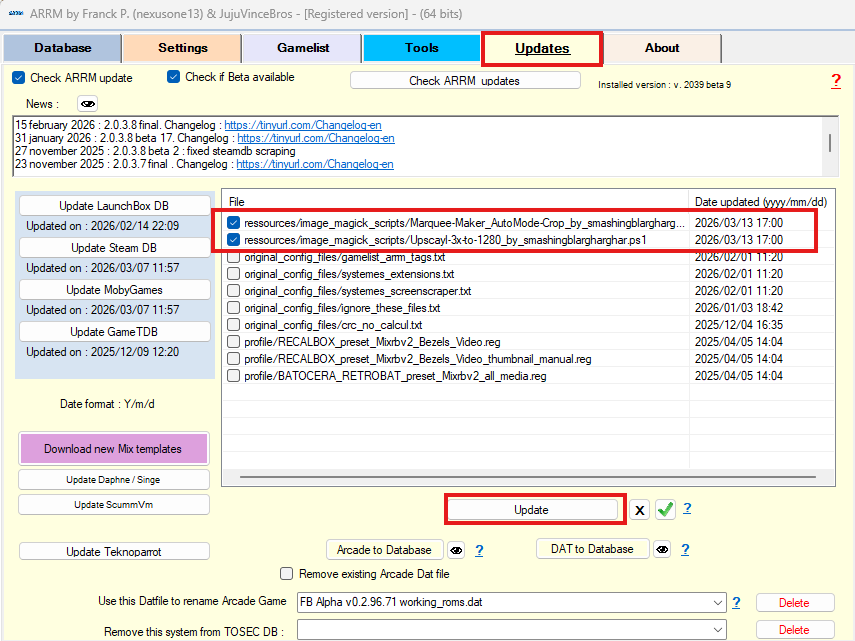
List of Scripts available in ARRM
Marquee-Maker_AutoMode-Crop_by_smashingblargharghar
Discuss this script here : https://discord.com/channels/418973513282486273/1482739852033392740
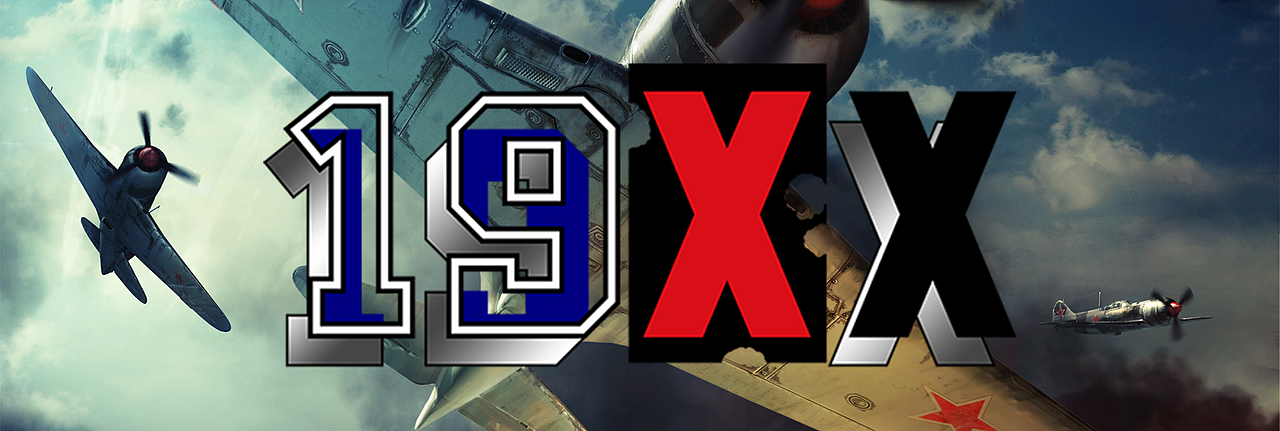
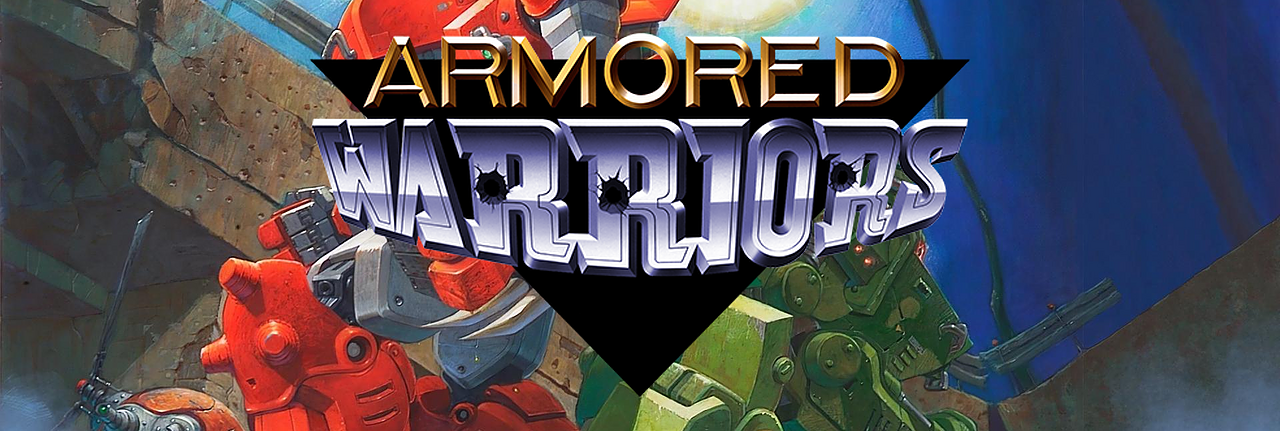
This script creates a custom Marquee stored here : “FOLDER_MARQUEE\new_marquee” composed with :
- Back image (First found) : FANART or THUMBNAIL or SCREENSHOT (you can change order , see 'Set Image Priority section')
$artFile
- Front image : WHEEL
$WheelFile = "%%WHEEL%% # This variable contains the full path to the media file stored in WHEEL tag. In ARRM I configured WHEEL so that it retrieves the 'wheel' media from Screenscraper>
Resulting file ($OutputFile) will be stored in FOLDER_MARQUEE\new_marquee\ folder ) this can be change in the script
$OutputPath  = "%%FOLDER_MARQUEE%%\new_marquee"
$OutputFile = Join-Path $OutputPath "$wheelBase-marquee.png"
Samples :
Upscayl-3x-to-1280_by_smashingblargharghar
Discuss this script here : https://discord.com/channels/418973513282486273/1482740648053440602
This script upscales Media using Upscayl software. You can download it here : Download Upscayl software In the provided script you can upscayl Boxart to 1280. But you can change the upscayl value in the script as well as the input media :
$UpscaleWidth = "1280" # Upscale witdth
$MediaToUpscale="%%BOXART%%"   	# Select the Media you want to upscale. Use ARRM variables. [[http://jujuvincebros.fr/wiki/arrm/doku.php?id=arrm_relooked_en:image_magick_scripts_en|See Wiki]]
Resulting file ($OutputFile) will be stored in %appdata%\Nexouille Soft\arrm\temp\%system%\boxart_%upscaleWidth% ) this can be change in the script
ARRM_Wheel_creator by Nexusone13
Discuss this script here : https://discord.com/channels/418973513282486273/1482742555430096978
This script creates a** Custom Wheel** (like Wheel Carbon) using a template wheel ( $CarbonWheelTemplate ) and a marquee ($Title) (graphic representing the game title)
By default, The template used for the wheel ( $CarbonWheelTemplate ) in %appdata%\Nexouille Soft\arrm\temp\custom_wheel\ folder
$CarbonWheelTemplate=Join-Path $TempFolder "\custom_wheel\${system}_wheel_carbon.png" # Full path to the template wheel to use. you can use the $system variable to automaticaly select the wheel that corresponds to the selected system in ARRM. Example : gbc_wheel_carbon.png . But you can choose the name you want. # by Default $CarbonWheelTemplate is located in %appdata%\Nexouille Soft\arrm\temp\custom_wheel folder
You can specify in $Title_area the area where Title should be paste. In original script : $Title_area = “417×193”
$Title_area = "417x193"   	# Title from Wheel or Marquee tag, will be written in the center of the carbon wheel in a area of this dimension
				# you can adapt this area to the carbon_wheel you are using
By default, The marquee ($Title) will be taken from Arrm, but you can specify your own path
$Title="%%MARQUEE%%"	# Full Path to the title media.  If the title is in the <wheel> instead of the <marquee> tag, change it by $Title="%%WHEEL%%".
#Title="c:\media\title\${RomfileName}-title.png"		# You can provide your own title media, just specify the path and name and unquote this line
By default, the Generated Custom Wheel ($OutputFile) will be stored in %appdata%\Nexouille Soft\arrm\temp\custom_wheel\$system\ folder with this name : **$RomfileName-carbon_wheel.png **
Samples :




ARRM_cut_plastic_side_from_psx_US_boxfront by Nexusone13
Discuss this script here : https://discord.com/channels/418973513282486273/1482743846201720924
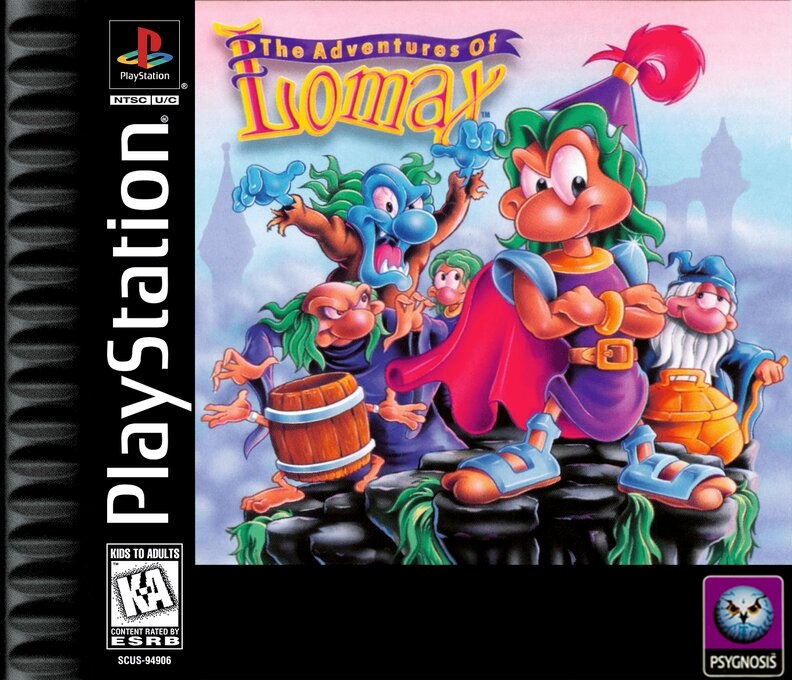
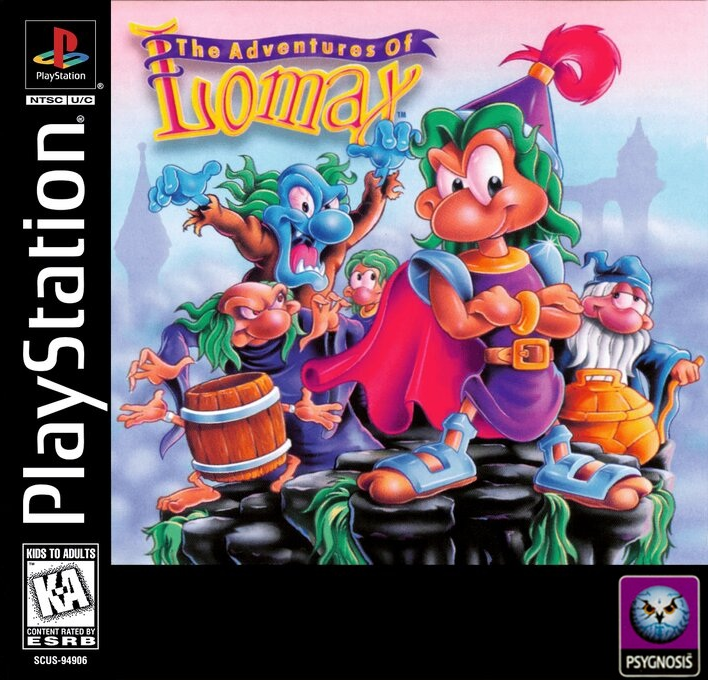
This script will remove the left plastic part present on some Screenscraper's US PSX Boxfront 2D media
Script will read the original BoxFront 2D and cut a specific number of pixel on the left. This number is initialized in the variable : $left_pixels_to_cut (4118 in the original script)
$left_pixels_to_cut = "84"
By default, original BoxFront 2D is read from Arrm's Thumbnail tag (The original 2D front box art should be there) and stored in the $ThumbFile variable.
$ThumbFile = "%%THUMBNAIL%%"
By default, Output Path ( $OutputPath ) is %appdata%\Nexouille Soft\arrm\temp\cut_boxart
By default, the Generated Cut Boxfront ($BoxartCut) have the same name as the $ThumbFile, and will be stored in %appdata%\Nexouille Soft\arrm\temp\cut_boxart\ folder
Samples :
- Before Cut:
- After Cut:
ARRM_boxart_3d_creator_by_nexusone13
updated on 04 may 2026
Discuss this script here : https://discord.com/channels/418973513282486273/1482744972401971464
How it Works
This script creates 3D box art using a 2D boxfront and a spine applied to a 3D graphic template.
It uses blank graphic templates available on Screenscraper in the media section

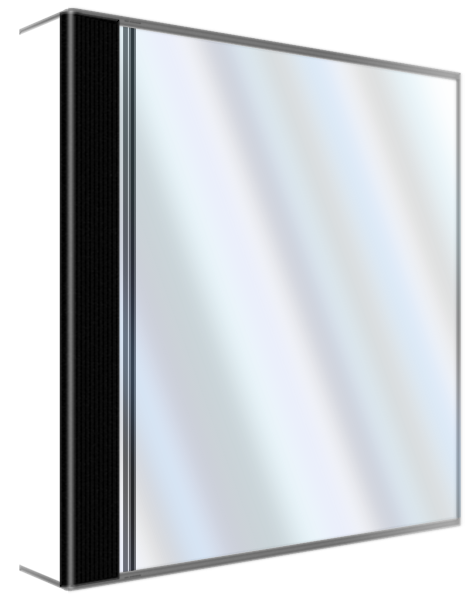
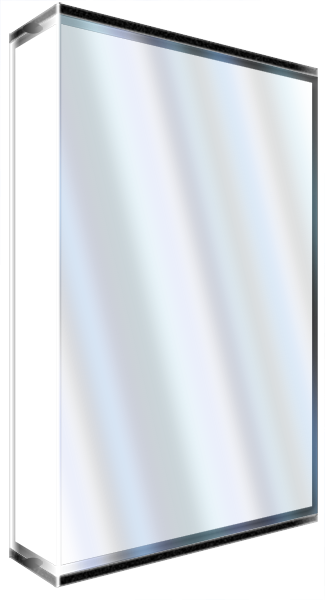
It uses 3D box art graphic templates based on the system.
The script uses the system name (system directory name) via the $system variable to select the appropriate template.
However, it is possible to force a system:
$system="%%SYSTEM%%" # With this parameter, the system name will be the one selected in your ARRM system browser.
#$system="arcade" # You can force a specific system by removing the quotation marks from this line and specifying the desired system. Make sure that this system is listed in the "Test Template Format (Landscape or Portrait)" and "Template Declaration" sections (see later in this script).
These graphic templates are located in the following folder:
%appdata%\Nexouille Soft\arrm\ressources\scripts_templates\${system}_box3D.png
and are declared here in the script:
$BlankCase="%%RESSOURCES%%\scripts_templates\${system}_box3D.png"
where ${system} takes the value of the selected system.
The BoxFront 2D and Side (Spine) elements are declared here in the script:
$FrontInput="%%THUMBNAIL%%" # This variable contains the full path to the media file stored in the THUMBNAIL tag. In ARRM I configured THUMBNAIL so that it retrieves the 'box-2D' media from Screenscraper
$SideInput="%%EXTRA1%%" # This variable contains the full path to the media file stored in EXTRA1 tag. In ARRM, I configured EXTRA1 so that it retrieves the 'box-2D-side' media from Screenscraper.
In this case, $FrontInput will take the value of the <thumbnail tag and $SideInput will take the value of the <extra1> tag sent by ARRM.
However, you can force the use of your own BoxFront and Side/Slice by placing them in the folder of your choice and declaring them like this, for example:
#$FrontInput="c:\media\front\${RomfileName}-thumb.png" # you can force your own front by putting them in the folder you want

#$SideInput="c:\media\side\${RomfileName}-side.png" # you can force your own side by putting them in the folder you want
where ${RomfileName} will take the name of the ROM file without The extension.
For each 3D graphics template, I defined the Front and Side/Edge areas to allow the application of associated media while preserving distortions.
All of this is declared in the TEST Template format (landscape or portrait) and TEMPLATE declaration sections.
The TEST Template format (landscape or portrait) section allows you to specify the format of the generated box (Portrait (standard format) or Landscape (such as those of the SNES, for example)).
	$list_systems_template_325_600 = @( "amstradcpc", "arduboy", "bbcmicro", "c64", "dragon32", "easyrpg", "electron", "famicom", "fm7", "gamate", "genesis",  "lowresnx", "lutro", "mastersystem", "megadrive", "moto", "msx1", "msx2", "msxturbor", "mugen", "nes", "oric", "pcfx", "pico8", "plus4", "sega32xjp", "spectravideo",  "ti99", "tic80", "uzebox", "wasm4", "x1", "x68000", "zx81", "zxnext", "zxspectrum")
	if ($list_systems_template_325_600 -contains $system){
		$system_template = "325_600"
		$displayFormat="portrait"
	}
I have grouped the systems into lists (here: list_systems_template_325_600) when they share the same display coordinates for the BoxFront and Side/Slices.
In the example above, the “amstradcpc”, “arduboy”, etc. systems use the same coordinates, but can use different Different visuals (blank Boxart3D).
The TEMPLATE declaration section allows you to specify the display coordinates for each list of systems.
	if ($list_systems_template_325_600 -contains $system){
		$system_template = "325_600"
		$frontPerspective = "0,0 58,8  $($Width),0 316,70  0,$($Height) 58,580  $($Width),$($Height) 316,516"
		$SidePerspective = "0,0 9,33 $($SideWidth),0 58,7  0,$($SideHeight) 9,552 $($SideWidth),$($SideHeight) 58,580"
	}
We therefore find the same lists of systems (here: $list_systems_template_325_600), where we declare the coordinates of the Front ($frontPerspective) and the Side ($SidePerspective)
For:
$frontPerspective = “0,0 58,8 $($Width),0 316,70 0,$($Height) 58,580 $($Width),$($Height) 316,516”
the coordinates correspond to:
Coordinates in the 3D Graphic template

58,8: top left
316,70: top right
58,580: bottom left
316,516: bottom right
The generated 3D boxarts will be stored in a folder with a name defined here:
$BoxartCreated="${RomfileName}-boxartcreated.png" # The created boxart will have the name of the Rom + "-boxartcreated.png". If you want to overwrite your current boxart file, you can change it in "$($RomfileName)-boxart.png"
$OutputPath = "%%FOLDER_BOXART%%" # The Path where created boxart will be saved.
FOLDER_BOXART will automatically take the value of the boxart folder as defined in your ARRM configuration. The file is named after the ROM file without an extension, with the suffix -boxartcreated.
You can also force the overwriting of the existing boxart by using the following filename (if you are using the -boxart suffix in your ARRM configuration):
$BoxartCreated="${RomfileName}-boxart.png"
For example, if your files are created in the boxart folder of ARRM with the suffix -boxart, to update this <boxart> tag in ARRM, you will need to do the following:
- Verify that you have the -boxart suffix for the boxart folder.
- In the Settings tab, General Options, check Search for missing images
- Select all your ROMs
- Click the Media exists? button in the Selected ROMs panel
- At the end of the process, save your game list.
See wiki: Retrieve the images already scraped to create your gamelist.xml
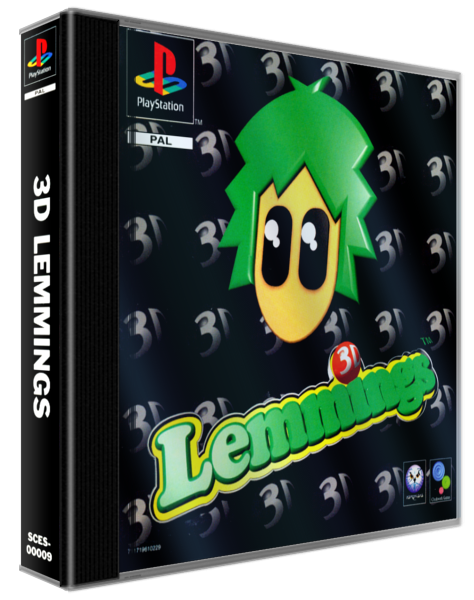
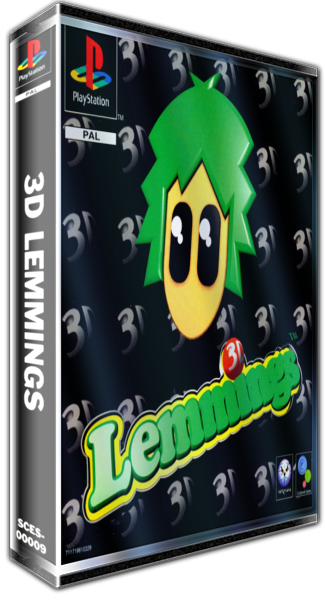
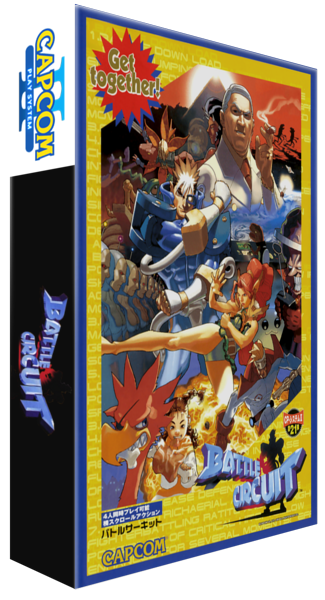
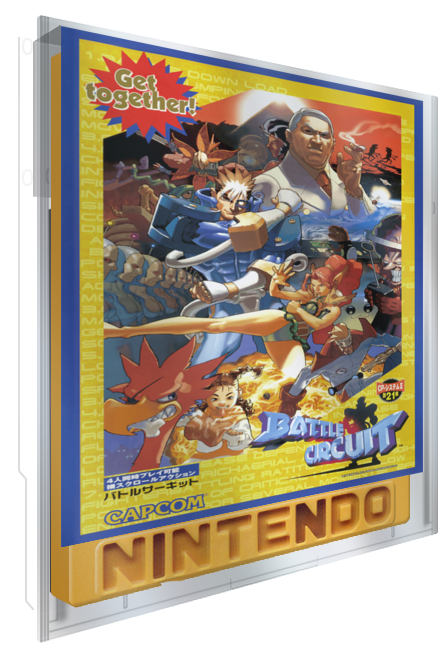
Examples:
PSX avec le modèle original
PSX avec le modèle K7 (c64)
Arcade avec le modèle original
Arcade avec le modèle FDS
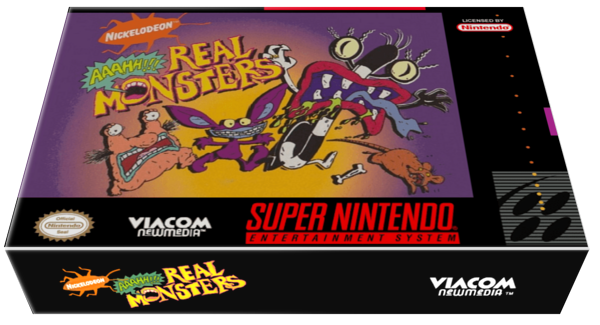
SNES avec le modèle original Modèle
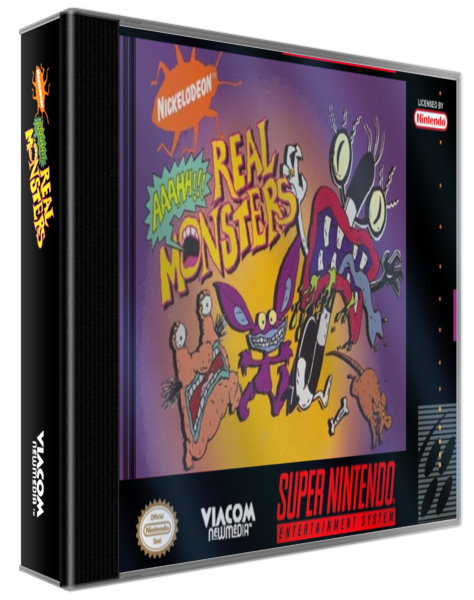
Modèle SNES avec PSX
ARRM_Custom_Marquee_from_template_(fanart_thumbnail_screenshot)_and_Title_creator by Nexusone13
Discuss this script here : https://discord.com/channels/418973513282486273/1482746121058259065
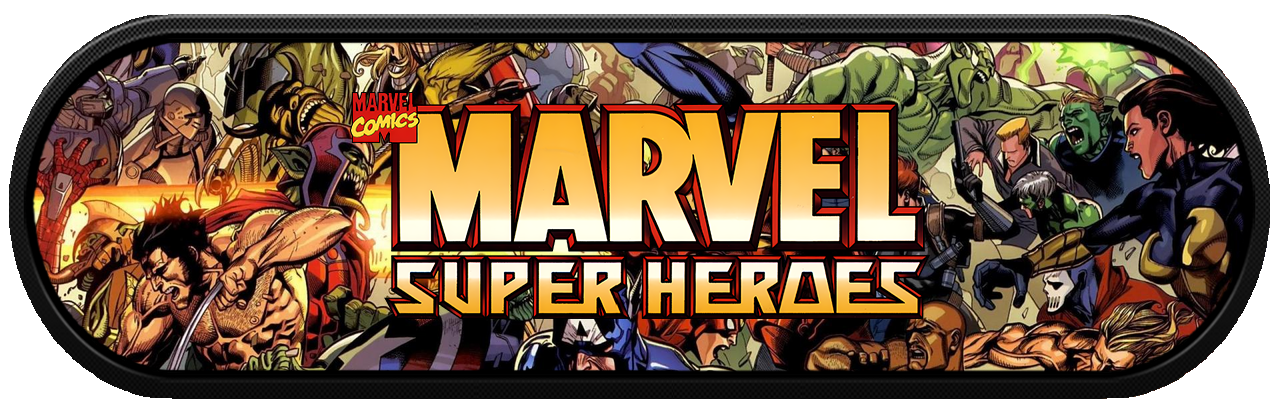
This script allows you to create custom marquees, just like ARRM did with predefined templates. This script is simpler and more customizable.
The custom marquee is based on a template ($CarbonWheelTemplate) to which you apply a background (Fanart, Thumbnail, or Screenshot. The first one found is used), as well as a title.
The $CarbonWheelTemplate templates are located in the folder %appdata%\Nexouille Soft\arrm\temp\custom_wheel\.
By default, the template used for the marquee ($CarbonWheelTemplate) is located in the folder %appdata%\Nexouille Soft\arrm\ressources\scripts_templates and is declared as follows in the script:
$CarbonWheelTemplate=Join-Path "%%RESSOURCES%%" "\scripts_templates\mask_image_carbon_1280XXXX.png" # Full path to the template wheel to use.

#$CarbonWheelTemplate=Join-Path "%%RESSOURCES%%" "\scripts_templates\mask_image_arcade_1280.png" # Full path to the template wheel to use. Unquote line if you want to use this template
#$CarbonWheelTemplate=Join-Path "%%RESOURCES%%" "\scripts_templates\mask_image_blast_1280.png" # Full path to the template wheel to use. Unquote line if you want to use this template
#$CarbonWheelTemplate=Join-Path "%%RESOURCES%%" "\scripts_templates\mask_image_ellipsis_1280.png" # Full path to the template wheel to use. Unquote line if you want to use this template
#$CarbonWheelTemplate=Join-Path "%%RESOURCES%%" "\scripts_templates\mask_image_empty_1280.png" # Full path to the template wheel to use. Unquote line if you want to use this template

$CarbonWheelTemplateSize="1280x412" # Size of the CarbonWheelTemplate
If you want to use a template other than the default one, remove the # at the beginning of the line, and add a # at the beginning of the line for the templates you are not using.
You can create your own templates by drawing inspiration from the definitions of the existing ones.
The image used as the background is taken in this order (the first one found is selected):
- Fanart
- Thumbnail
- Screenshot
They appear in the script as follows:
if (-not [string]::IsNullOrWhiteSpace("%%FANART%%") -and (Test-Path -LiteralPath "%%FANART%%" -PathType Leaf)) {
	$artFile = "%%FANART%%"
	$artFileType = "Fanart"
}
elseif (-not [string]::IsNullOrWhiteSpace("%%THUMBNAIL%%") -and (Test-Path -LiteralPath "%%THUMBNAIL%%" -PathType Leaf)) {
	$artFile = "%%THUMBNAIL%%"
	$artFileType = "Thumbnail"
}
elseif (-not [string]::IsNullOrWhiteSpace("%%SCREENSHOT%%") -and (Test-Path -LiteralPath "%%SCREENSHOT%%" -PathType Leaf)) {
	$artFile = "%%SCREENSHOT%%"
	$artFileType = "Screenshot"
}
By default, the image representing the game title is the one from the MARQUEE tag sent by ARRM. You can change it to WHEEL if the title is stored in this tag or any other tag. It is defined as follows in the script:
$Title_area = "1053x282"   	# Title from Wheel or Marquee tag, will be written in the center of the carbon wheel in a area of this dimension
					# you can adapt this area to the carbon_wheel you are using
By default, the generated custom marquee file ($OutputFile) will be saved in the %appdata%\Nexouille Soft\arrm\temp\custom_wheel_fanart\$system\ folder under the following name: $RomfileName-custom_wheel_fanart.png
$Carbon_wheel_fanart_Created="${RomfileName}-custom_wheel_fanart.png" # Name of the new created carbon wheel
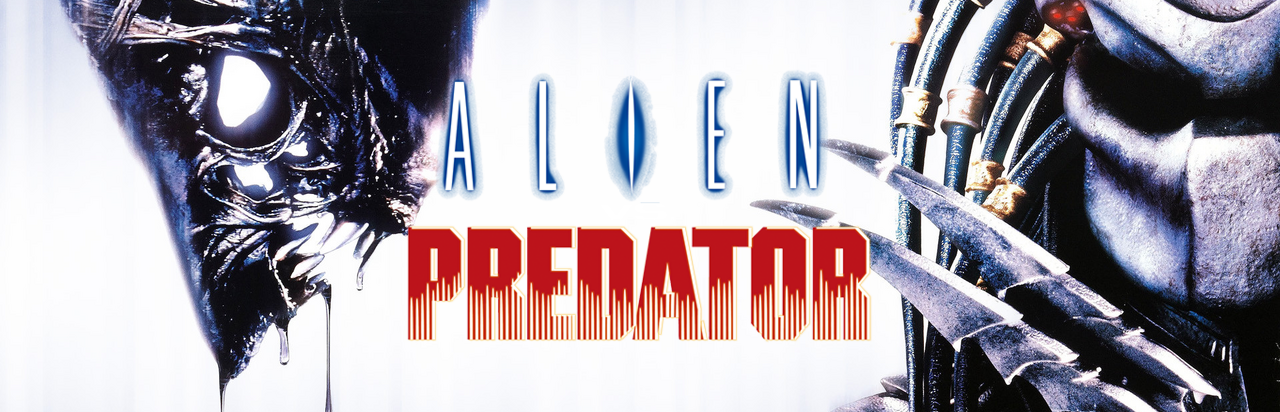
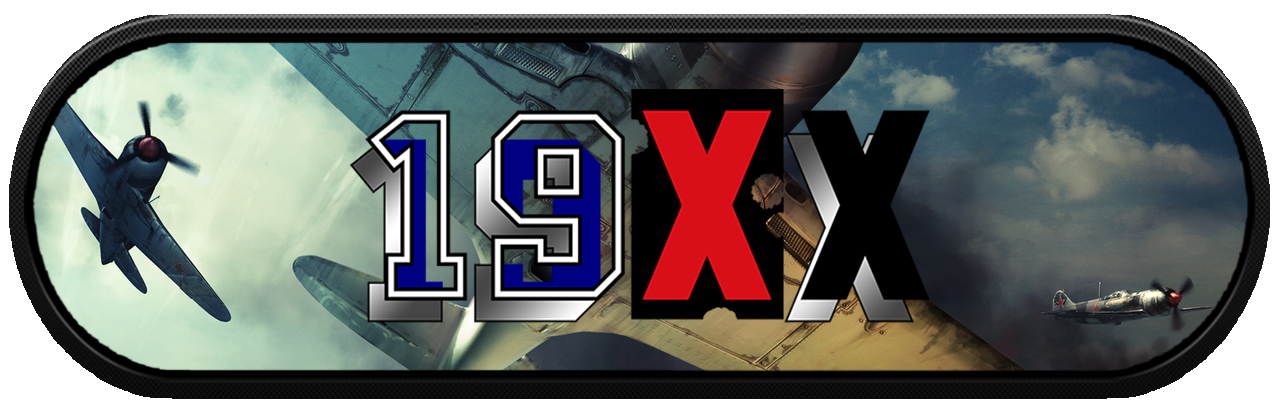
Examples


ARRM_spine_side_creator by Nexusone13
Discuss this script here : https://discord.com/channels/418973513282486273/1484598027577589811
How it works
This script creates the spines/slices of boxes. These can then be used to create custom 3D box art.
It can use the blank graphic templates available on Screenscraper in the media section




It uses spine/slice graphic templates $template_file located in this directory:
$SpineTemplate="%%RESSOURCES%%\scripts_templates\box_spine\${template_file}"
The different template profiles (corresponding to the different systems) are declared in the Template profiles declaration section. This is where you can modify or add a template by specifying the system name (the system directory name, which may differ from one frontend to another).
$list_systems_template_amiga = @("amiga", "amiga500", "amiga600", "amiga1200")
if ($list_systems_template_amiga -contains $system){
	$Title_area = "436x94"
	$shift_x= "+236"
	$shift_y = "+0"
	$template_name = "amiga"
	$Side_size = "680x98"
	$TextSize = "30"
	$template_file = "amiga_box_tranche_vierge.png"
}
If no graphical template is found, the script will use the following default template:
$Title_area = "670x93"   	# Title from Wheel or Marquee tag, will be written in the center of the carbon wheel in a area of this dimension
							# you can adapt this area to the carbon_wheel you are using
$Side_size = "680x97"
$template_name = "blank"
$template_file = "blank_box_tranche_vierge.png"
$shift_x = "+0"
$shift_y = "+0"
$TextSize = "30"			# Default Size for selected Font, can be changed in template profile declaration section
The script will then use this blank template blank_box_tranche_vierge.png and fill it with the dominant color of the BoxFront.
This BoxFront is declared here:
$BoxFront="%%THUMBNAIL%%"
The font size is declared in some templates via this variable (it is 30 by default):
$TextSize = "25"
The font used is declared here:
$FontUsed = "%%RESSOURCES%%\scripts_templates\Anton-Regular.ttf".replace("\","/") # Font used for the Title on the Side. You can change the font. To know the name of all your installed fonts , use this commande line : magick -list font, or specify the full path to the font .ttf
The spine dimensions are declared here:
$Side_size = "680x97"
The script uses existing wheels/marquees (game titles in graphical form) to apply them to the found Spine/Slice graphical template.
The wheels are declared in the variable $TitleImage.
$TitleImage="%%MARQUEE%%"
By default, the script retrieves this TitleImage from the <marquee> tag in the ARRM database.
You can define a specific path using the available variables.
Example: c:\spinebox\${RomFileName}.png, where ${RomFileName} will take the value of the ROM filename without the extension.
If no TitleImage is found, the script will use the default font to write the title in the color opposite to the dominant color (see above) with the font size defined in the template (or the default size).
This TitleImage will be positioned within a window with the dimensions declared here:
$Title_area = "670x93"
You can reduce this area if the title/wheel is too large.
The offset from the top edge is declared here:
$shift_x = "+109"
The calculation is as follows:
height of the top area - height of the bottom area.
The result can be negative.
In the case of the Lynx spine:
the top area corresponds to the Lynx logo (221 px) and the bottom area to the Atari logo (112 px) which gives: 221 - 112 = +109
You can override some of these elements: read the script carefully, everything is explained in detail.
The path to the created side/slice file will be declared here:
$SideCreated="${RomfileName}-side.png"
$OutputPath = "%%FOLDER_EXTRA1%%"
Here are some examples of Sides/Slices produced by this script:
Examples













To update this <extra1> tag in ARRM, so that these spines/slices can be used in ARRM, or in other scripts like ARRM_Boxart_3D_creator, you will need to do the following:
- Verify that you have -spine as the suffix for the extra1 directory.
- In the Settings tab, Main Options, check Find missing images
- Select all your ROMs
- Click on the Media exists? button in the Roms Selected panel
- At the end of the process, save your gamelist.
See wiki: Retrieve the images already scraped to create your gamelist.xml