
Ceci est une ancienne révision du document !
Table des matières
Create or Modify a System
Are you using system names (directories) that differ from those provided by Recalbox, Batocera, or Retropie? Or perhaps you wish to add a new system? How can you do this?
As of version ARRM 2.0.3.2 Beta 6, you can use a system editing form instead of manually modifying configuration files.
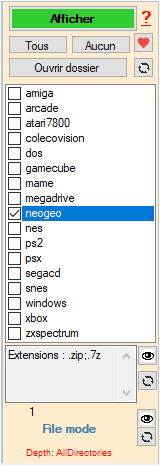
This form can be accessed via the Edit Systems button in the ARRM system explorer.
The interface appears as follows:
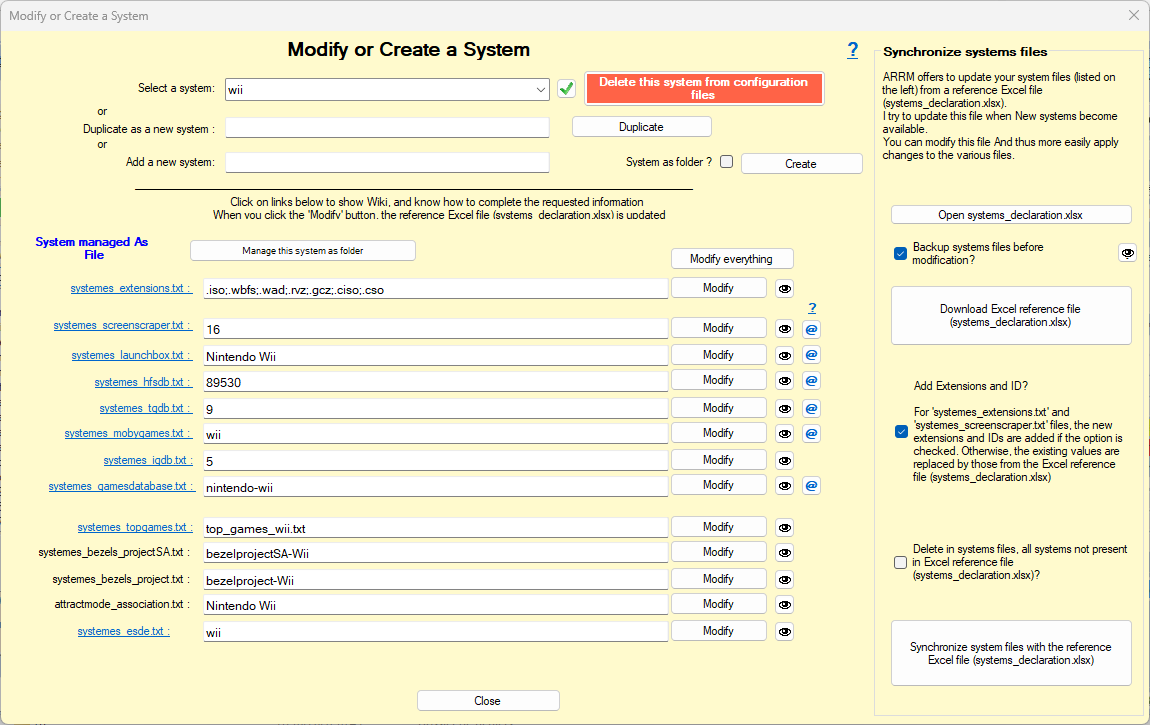
- systemes_screenscraper.txt (for Screenscraper)
- systemes_launchbox.txt (for LaunchBox)
- systemes_hfsdb.txt (for HFS-Db)
- systemes_tgdb.txt (for TheGamesDB)
- systemes_mobygames.txt (for MobyGames)
- systemes_igdb.txt (for IGDB)
- systemes_gamesdatabase.txt (for Games Database, used exclusively for music)
Updating your systemes_*.txt files using the reference Excel file (systems_declaration.xlsx)
As of version ARRM 2.0.4.6, you can update the system files listed above using a reference Excel file (systems_declaration.xlsx) that contains all the information required to populate these files. This eliminates the need for manual edits.
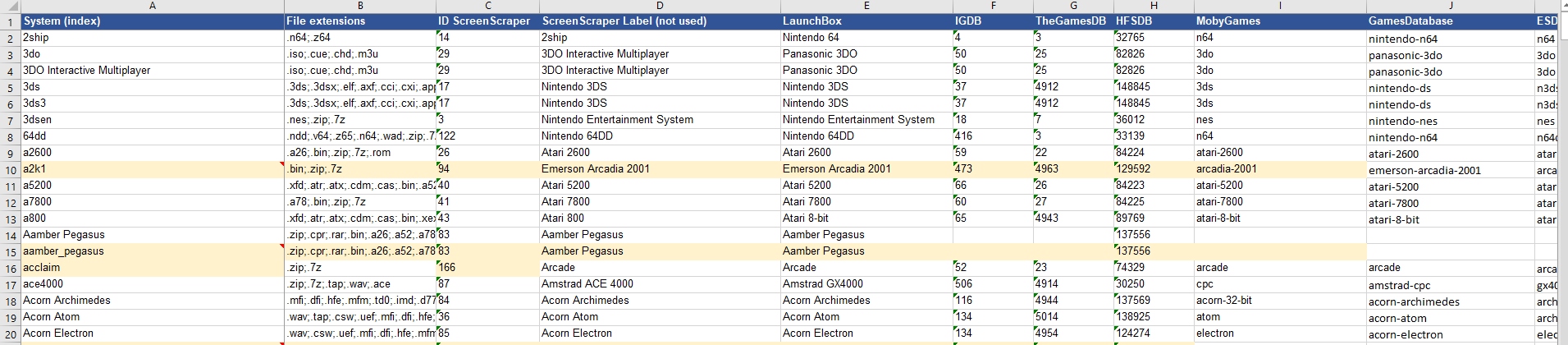
The systems_declaration.xlsx file is located in the %appdata%\Nexouille Soft\Arrm\Database\ folder and appears as follows:
How to modify the reference Excel file?
You can update this file by editing it via the Open systems_declaration.xlsx button. You may add, modify, or remove systems, as well as update information related to the various scraping platforms (such as IDs and system names) that will be used to perform the scrapes.
How to retrieve the reference Excel file from the ARRM website
Whenever new systems are introduced, I aim to update the systems_declaration.xlsx file. You can obtain this update by clicking the Download reference Excel file (systems_declaration.xlsx) button, which will fetch the latest version from the ARRM website.
Your current file will be overwritten by the one retrieved from the ARRM website.
How to synchronize your system files with the reference Excel file
Determine whether or not you need to select the two available checkboxes:
- Add Extensions and ID ? : (Recommended) If selected, any new system extensions and IDs found in the reference Excel file (systems_declaration.xlsx) will be added to the systemes_*.txt files during synchronization. If left unselected, existing extensions and IDs will be replaced by those from the reference Excel file (systems_declaration.xlsx).
- Remove systems from the **systemes_*.txt files that are not present in the reference Excel file (systems_declaration.xlsx)** : It is generally better to leave this unchecked; if you have created systems that are not listed in the Excel file, selecting this option will cause them to be deleted.
Manually update your systemes_*.txt files WITHOUT using the reference Excel file (systems_declaration.xlsx)
To edit an existing system:
- Select the system to modify using the Select a system combobox
- Modify the various textboxes.
To create a new system:
- Enter the system name in the Add a new system textbox
- Click the Create button. The system will be added to the list in the Select a system combo box.
- Select the created system from this list
- Complete the various textboxes.
To clone/duplicate a system:
- Select the system to be used as a template
- Enter the name of the new system in the Duplicate as new system textbox
- Click Duplicate (the new system is automatically selected)
- Fill in the various textboxes.
When you click the Edit or Edit all button, this information will be written to the reference Excel file systems_declaration.xlsx.
If you don't want to use this interface to modify the values, you can access these various configuration files via the  icon to the right of the text boxes or on the ARRM main screen.

Example System Configuration
Let's take the Master System as an example.
By default, the ROM directory name for the Master System is mastersystem for Recalbox/Batocera and Retropie.
In your configuration, this system (directory) is named Sega Master System.
You will therefore need to modify the values (or files) as follows:
The systemes_screenscraper.txt file (for Screenscraper)
You will need to add a line in the 'systemes_screenscraper.txt' file:
sega master system|2
For information, the Screenscraper system number can be found by searching for your system on the screenscraper.fr website. When you have found your system, its number appears (platform) in the url of the site: https://www.screenscraper.fr/systemeinfos.php?plateforme=2&alpha=0&numpage=0 which will give in the file 'systemes_screenscraper.txt'
...
mastersystem|2
sega master system|2
nes|3
family_computer|3
snes|4
...
The systemes_tgdb.txt file (for TheGamesDB)
You will need to add a line in the 'systemes_tgdb.txt' file:
sega master system|35
For information the TheGamesDB system number can be found by searching for your system on thegamesdb.net site. When you have found your system, its number appears (id) in the site URL: https://thegamesdb.net/platform.php?id=35
which will give in the file 'systemes_tgdb.txt'
...
sega_pico|4958
segacd|21
sega master system|35
sfc|6
sg-1000|4949
...
The systemes_mobygames.txt file (for MobyGames)
You will need to add a line in the 'systemes_mobygames.txt' file:
sega master system|sega-master-system
For information the name of the MobyGames system can be found by searching for your system on the mobygames.com site. When you have found your system, its name appears in the site url: https://www.mobygames.com/game/sega-master-system/alex-kidd-in-miracle-world
which will give in the file 'systemes_mobygames.txt'
...
mame|arcade
mastersystem|sega-master-system
mega-cd|sega-cd
mega-play|arcade
...
The systemes_hfsdb.txt file (for HFS-DB)
You will need to add a line in the 'systemes_hfsdb.txt' file:
mastersystem|82166
For information, the HFS-DB system number can be found by searching for your system on the HFS-DB site. When you have found your system, its number appears (id) in the site URL: https://db.hfsplay.fr/systems/82166-sega-master-system?lang=fr
the ID will be here: 82166
or via the file %appdata%\nexouille soft\arrm\database\systemes_hfs_original.txt
which will give in the file 'systemes_hfsdb.txt'
...
loopy|36407
lynx|240842
mastersystem|82166
mega-cd|83493
mega-play|74735
...
The systemes_launchbox.txt file (for LaunchBox)
You will need to add a line in the 'systemes_launchbox.txt' file:
mastersystem|Sega Master System
For information the name of the LaunchBox system can be found by searching for the system on the list of systems on the site LaunchBox .
Here the system is called: Sega Master System
which will give in the file 'systemes_launchbox.txt'
...
mama|Arcade
mastersystem|Sega Master System
mega-cd|Sega CD
mega-play|Arcade
...
The systemes_igdb.txt file (for IGDB)
You will need to add a line in the 'systemes_igdb.txt' file:
mastersystem|64
For information the code of the IGDB system can be found in the file %appdata%\nexouille soft\arrm\database\systemes_igdb_original.txt .
Here the system is called: Sega Master System and has the system code 64
which will give in the file 'systemes_igdb.txt
...
mom|52
mastersystem|64
megacd|29
megadrive|29
...
The systemes_gamesdatabase.txt file (for Gamesdatabase)
This file is used to retrieve music and manuals from the site Gamesdatabase
It will be necessary to add a line in the file 'systemes_gamesdatabase.txt' by locating on the site, the name of the system 'sega master system' used in the url. For shinobi on Sega master system, the url on gamesdatabase is: https://www.gamesdatabase.org/game/sega-master-system/shinobi
It is therefore necessary to add in this file the line:
sega master system|sega-master-system
which will give in the file 'systemes_gamesdatabase.txt'
...
sega32x|sega-32x
sega_pico|sega-pico
segacd|sega-cd
sega master system|sega-master-system
sfc|nintendo-snes
sg-1000|sega-sg-1000
sg1000|sega-sg-1000
...
The systemes_extensions.txt file
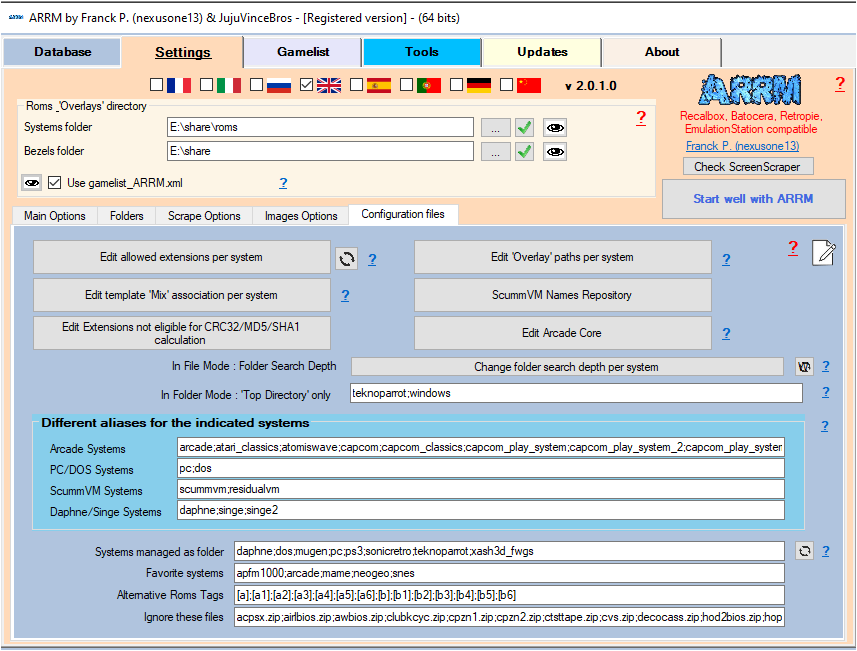
In order to associate the right extensions to this new system, it will also be necessary to modify the extensions file: systemes_extensions.txt located in %appdata%\nexouille soft\arrm\database\systemes_extensions.txt
Access to this file can be done via the button 'Modify the extensions authorized by system' in the tab Parameters then 'tab Configuration files
Example with this modified file:
...
sega32x|.32x;.smd;.bin;.zip;.md;.7z
segacd|.cue;.iso;.chd;.bin
sega master system|.sms;.zip;.bin;.7z
sg1000|.sg;.zip;.bin;.7z
sg-1000|.sg;.zip;.bin;.7z
...
 in order to take the changes into account without having to restart ARRM
The template_association.txt file
If you use the 'Auto template' feature (automatic association of a template depending on the system), you must modify the file %appdata%\nexouille soft\arrm\database\template_association.txt and add your system.
Example with this modified file:
...
sega32x|Next_Pixel_1080_console\Next_Pixel_1080_console.xml
segacd|Next_Pixel_1080_console\Next_Pixel_1080_console.xml
sega master system|Next_Pixel_1080_console_old\Next_Pixel_1080_console_old.xml
sfc|Next_Pixel_1080_console\Next_Pixel_1080_console.xml
sg-1000|Next_Pixel_1080_console_old\Next_Pixel_1080_console_old.xml
...
The template_association_video.txt file
If you use the 'Video Overlay' feature with the Auto template' (automatic association of a template depending on the system), you must modify the file %appdata%\nexouille soft\ arrm\database\template_association_video.txt and add your system.
Example with this modified file:
...
sega32x|mix_screenscraper_birthday\mix_screenscraper_birthday.xml
segacd|mix_screenscraper_birthday\mix_screenscraper_birthday.xml
sega master system|mix_screenscraper_birthday\mix_screenscraper_birthday.xml
sfc|mix_screenscraper_birthday\mix_screenscraper_birthday.xml
sg-1000|mix_screenscraper_birthday\mix_screenscraper_birthday.xml
sg1000|mix_screenscraper_birthday\mix_screenscraper_birthday.xml
...
The systems_sorting.txt file
If you use the 'Systems Sorter, Sort file es_systems.cfg' feature in the 'Tools' tab (which allows you to display the systems in the order you want on EmulationStation) , you must modify the file %appdata%\nexouille soft\arrm\database\systems_sorting.txt and add your system.
Example with this modified file:
...
sega32x;Mega Drive 32X;Sega;1994;console;0
segacd;Mega-CD;Sega;1991;console;0
sega master system;Master System;Sega;1986;console;0
sfc;Super Famicom;Nintendo;1991;console;0
sg-1000;SG-1000;Sega;1983;console;0
...
The attractmode_association.txt file
If you use export to an attractmode file, you must modify the file %appdata%\nexouille soft\arrm\database\attractmode_association.txt and add your system. The label of the system to add respects the denomination used in Hyperspin
Example with this modified file:
...
Sega Hikaru|Sega Hikaru
Sega Master System|Sega Master System
Sega Model 2|Sega Model 2
Sega Model 3|Sega Model 3
Sega Naomi|Sega Naomi
...
The systemes_esde.txt file
If you use the ES-DE export module, this file %appdata%\nexouille soft\arrm\database\systemes_esde.txt indicates the correspondence between ARRM system folders and ES-DE system folders.
Example:
...
Sega Dreamcast|dreamcast
Sega Game Gear|gamegear
Sega Genesis|genesis
Sega Master System|mastersystem
Sega Mega CD - Sega CD|megacd
Sega Mega Drive - Genesis|megadrive
Sega Model 2|model2
Sega Model 3|model3
Sega Naomi 2|naomi2
Sega Naomi|naomi
...
The systemes_as_folder.txt file
If this system must be treated, during scraping, as a folder and not a file (tree like for the windows system or dos (.pc)) you must add it to the file %appdata%\nexouille soft\ arrm\database\systemes_as_folder.txt and add your system. Remember to uncheck the 'PC/DOS: files mode' checkbox in the Scrape Options tab
Example with this modified file:
daphne
back
Mugen
pc
ps3
sega master system
windows
The arcade_systems_list.txt file
Since version 1917 Beta 9 this file can be modified via the Configuration files tab see: ARRM software settings
If a system should be treated as an arcade system, you can add it to the %appdata%\nexouille soft\arrm\database\arcade_systems_list.txt.
This file is of this form:
arcade;atari_classics;atomiswave;capcom;capcom_classics;capcom_play_system;capcom_play_system_2;capcom_play_system_3;cave;chihiro;cps;cps1;cps2;cps3;fba;fba_libretro;fbneo;gaelco;hbmame;hikaru;mame;mame-advmame;mame-libretro; mame-mame4all;model1;model2;model3;naomi;naomi2;naomigd;neogeo;neogeocd;neogeomini;neogeox;openbor;sega_classics;snk_classics;stv;taito_classics;tecmo;teknoparrot;triforce
The daphne_systems_list.txt file
Since version 1917 Beta 9 this file can be modified via the Configuration files tab see: ARRM software settings
If a system should be treated as a Daphne/Singe system, you can add it to the %appdata%\nexouille soft\arrm\database\daphne_systems_list.txt.
This file looks like this:
daphne;monkey
The pcdos_systems_list.txt file
Since version 1917 Beta 9 this file can be modified via the Configuration files tab see: ARRM software settings
If a system should be treated as a PC/DOS system, you can add it to the %appdata%\nexouille soft\arrm\database\pcdos_systems_list.txt.
This file looks like this:
pc; back
The scummvm_systems_list.txt file
Since version 1917 Beta 9 this file can be modified via the Configuration files tab see: ARRM software settings
If a system should be treated as a ScummVM system, you can add it to %appdata%\nexouille soft\arrm\database\scummvm_systems_list.txt.
This file looks like this:
scummvm;residualvm
ARRM Interface System Logos
If you want to modify it, you can also adapt the system logo that appears in the ARRM interface, by copying the file '** mastersystem.png ' in ' sega master system.png **' which is in the d directory 'installation of the application in the subdirectory 'logos'
These logos can be generated via the Systems Selected tab, Get Wheels Systems button
If the system you added did not exist in your frontend, then you will have to add it to the frontend's es_systems.cfg file.