Table des matières
How to register your ARRM license
After making your donation, I will process your request within the day and you will receive an email allowing you to deactivate the donation reminder popup and access certain additional features in the ARRM application.
The email you received contains a .zip file of the type user_test@servermailtest.com_thanks_for_ARRM_donation.zip containing your registration key.
'Automatic' ARRM license entry procedure
- Open the .zip file (like user_test@servermailtest.com_thanks_for_ARRM_donation.zip)
- Double click on the .reg file (like user_test@servermailtest.com_thanks_for_ARRM_donation.reg)
- ARRM is registered
If you have correctly registered your key, after launching ARRM, you should see Registred version in the application title banner

However, on some versions of Windows, this procedure does not work.
See below how to do this manually:
'Manual' ARRM license entry procedure
- Open the .zip file (like user_test@servermailtest.com_thanks_for_ARRM_donation.zip)
- Open the .reg file (like user_test@servermailtest.com_thanks_for_ARRM_donation.reg) to see its contents (with a text editor)
- Locate the key stop_donation_id
- Copy its contents to the clipboard.
- Open the windows registry editor (regedit)
- Position yourself on the key [HKEY_CURRENT_USER\Software\Nex_Arrm]
- Create the key stop_donation_id by doing:
- Right click, then New
- Choose String Value
- Enter the name of the key stop_donation_id
- Double click on this key stop_donation_id to access its content
- Enter or paste in the Value data field, the value of the key stop_donation_id previously copied.
- Close Registry Editor
If you have correctly registered your key, after launching ARRM, you should see Registred version in the application title banner
Entering the key via the ARRM interface
Since version 2.0.2.4, it is possible to enter the ARRM license key directly via the interface.
- Retrieve the license key provided via Email, or Discord
- Run ARRM
- In the Settings, then General Options tab, enter the key in the ARRM key textbox
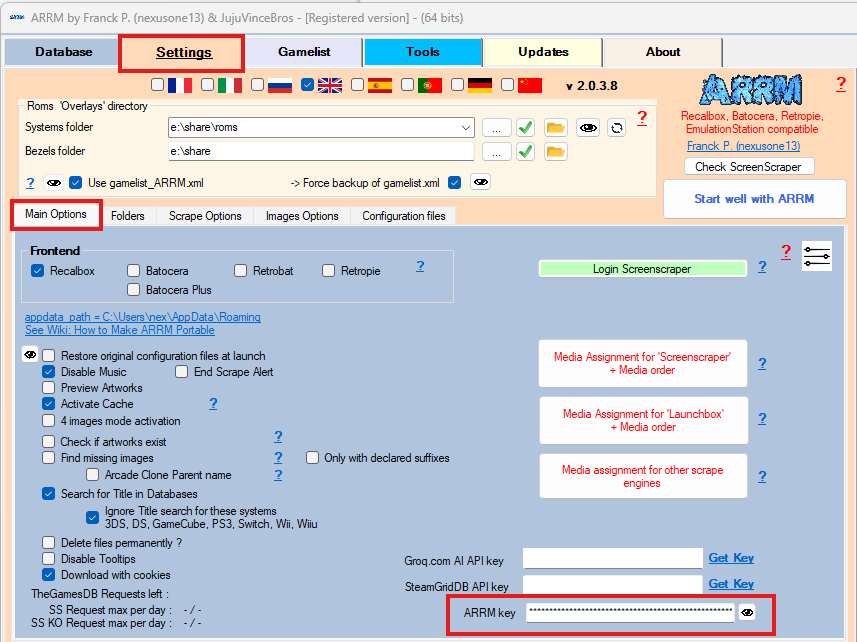
If you have correctly registered your key, after launching ARRM, you should see Registred version in the application title banner