Under windows 10 / 11, the program does not display texts and forms correctly
Example of display problem you may encounter:

- Stop ARRM
- In Windows 10, go to 'Settings', 'System', 'Display', and set '100% (recommended)' for 'Scale' in 'Scale and Layout'.
- In Windows 11, go to 'Display' (by right-clicking on the desktop), and set '100% (recommended)' for 'Scale' in 'Scale and Layout'.
Note: If before these manipulations ARRM is not stopped, the change will not apply to the program.
You can also, to change the settings only for the application, do
- Right click on the ARRM app
- Property
- Compatibility
- Click on 'Change high DPI settings
- Check 'Override high DPI scaling behavior' and select 'System' from the drop-down menu
- Click OK
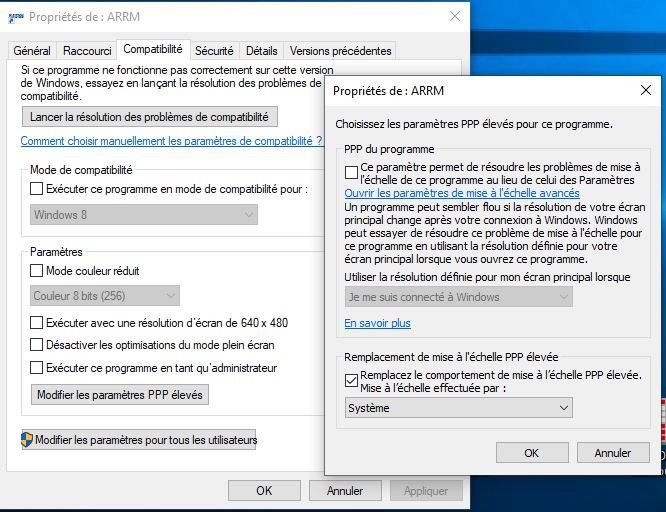
Thanks to Titruf for this solution